How it works · step by step
From a spreadsheet and a lot of texting, to sorted.
Everything you'll do with SubbieChase, in order, with real screens from the app. Setting up is a one-off; after that it mostly runs itself, and you just check in.
01 · Get set up
Five steps, once. A checklist walks you through them.
1Step 1
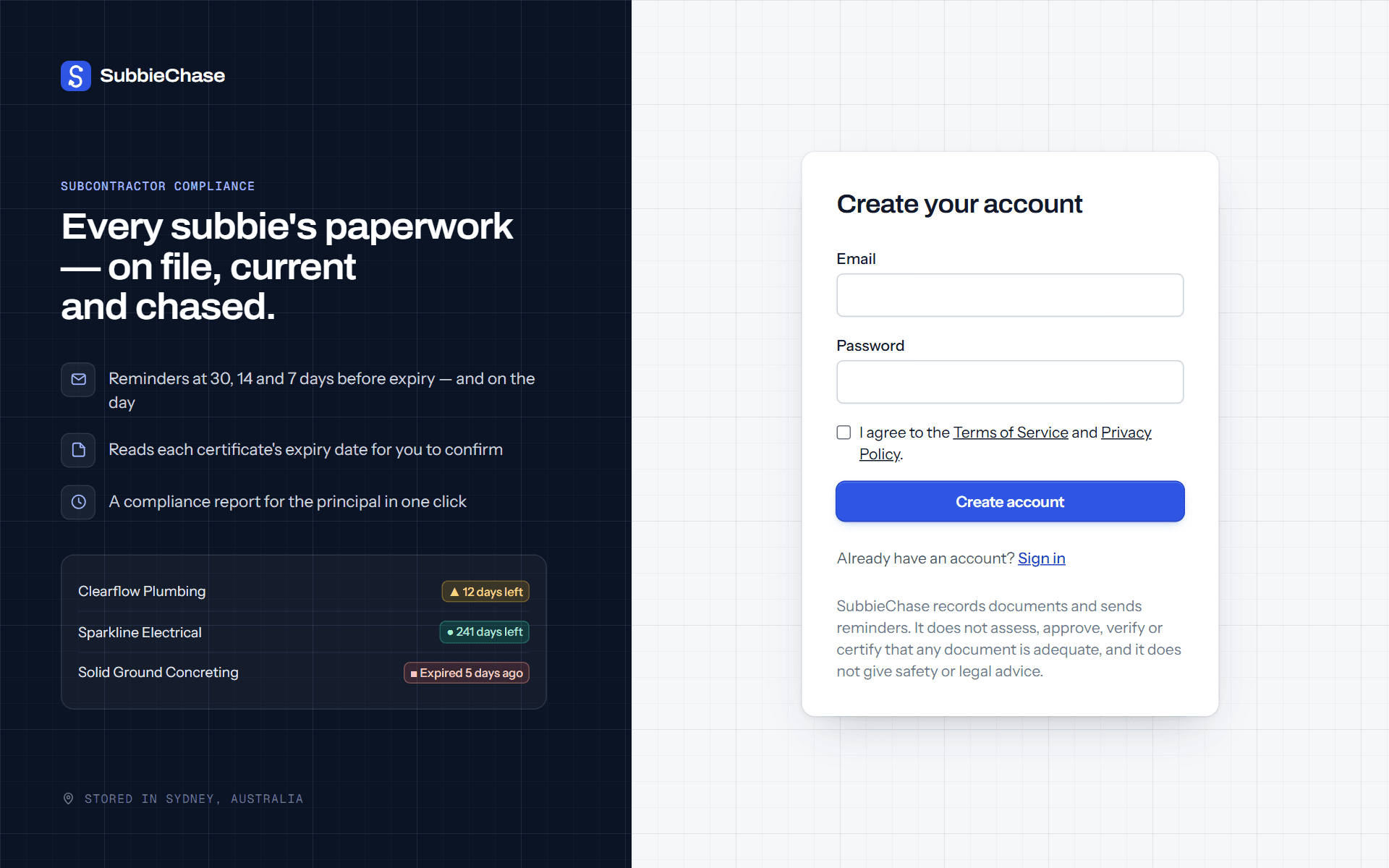
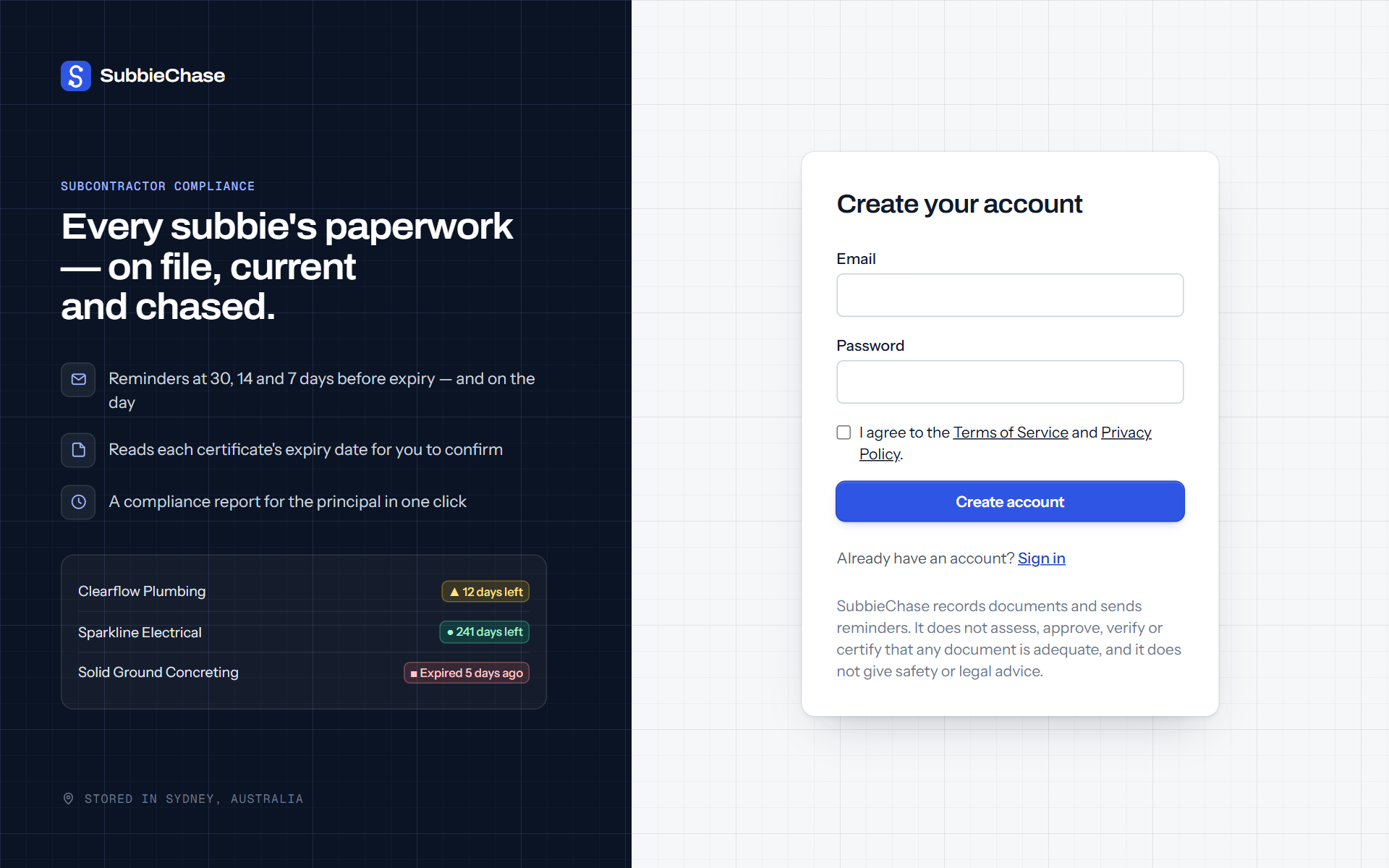
Create your account
An email and a password, then your business name. No card, and nothing to install — it works in the browser on your computer or phone.
Your free trial covers up to 10 subbies and 10 automatic certificate readings for 14 days — enough to try it properly with your real subbies.
2Step 2
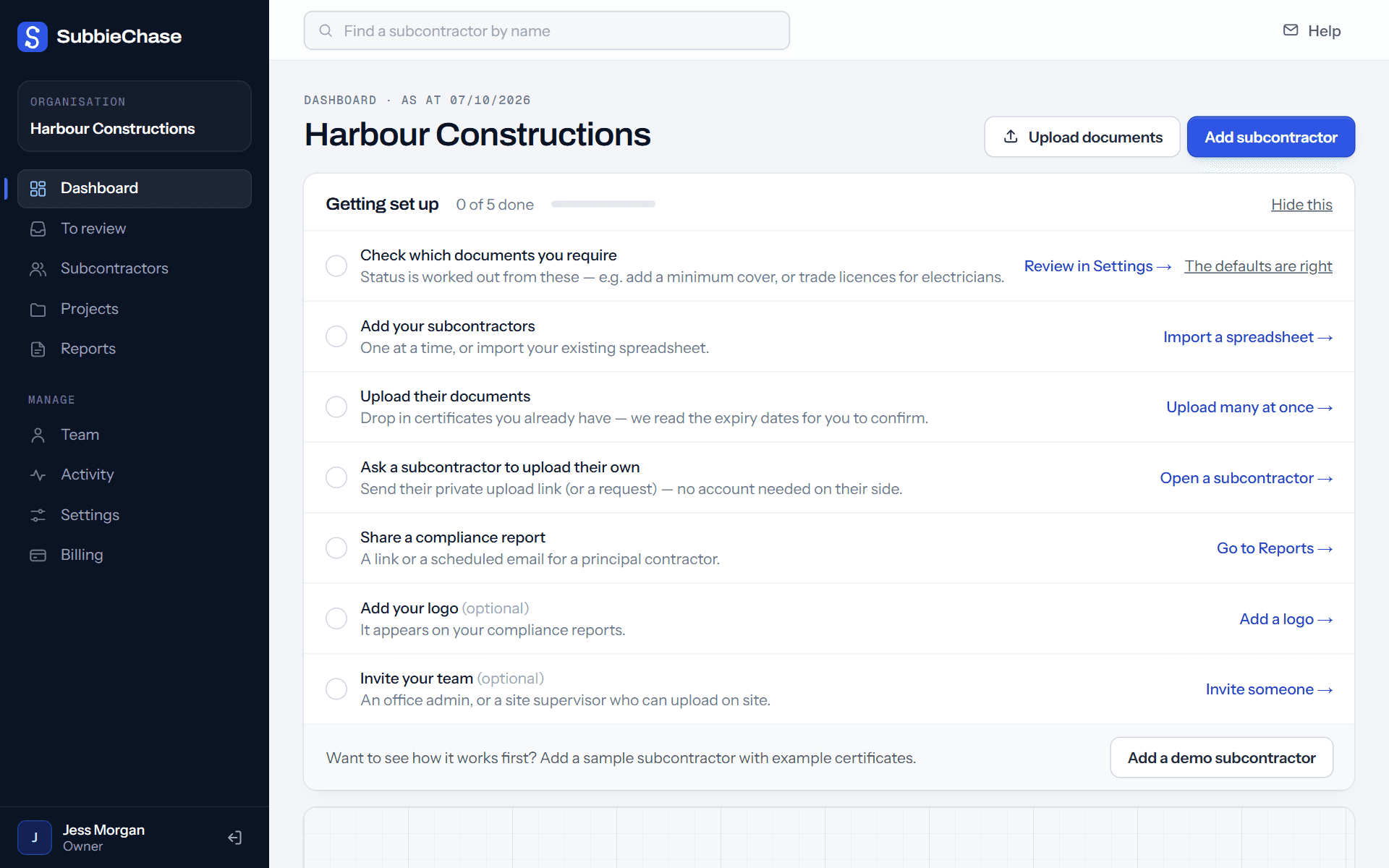
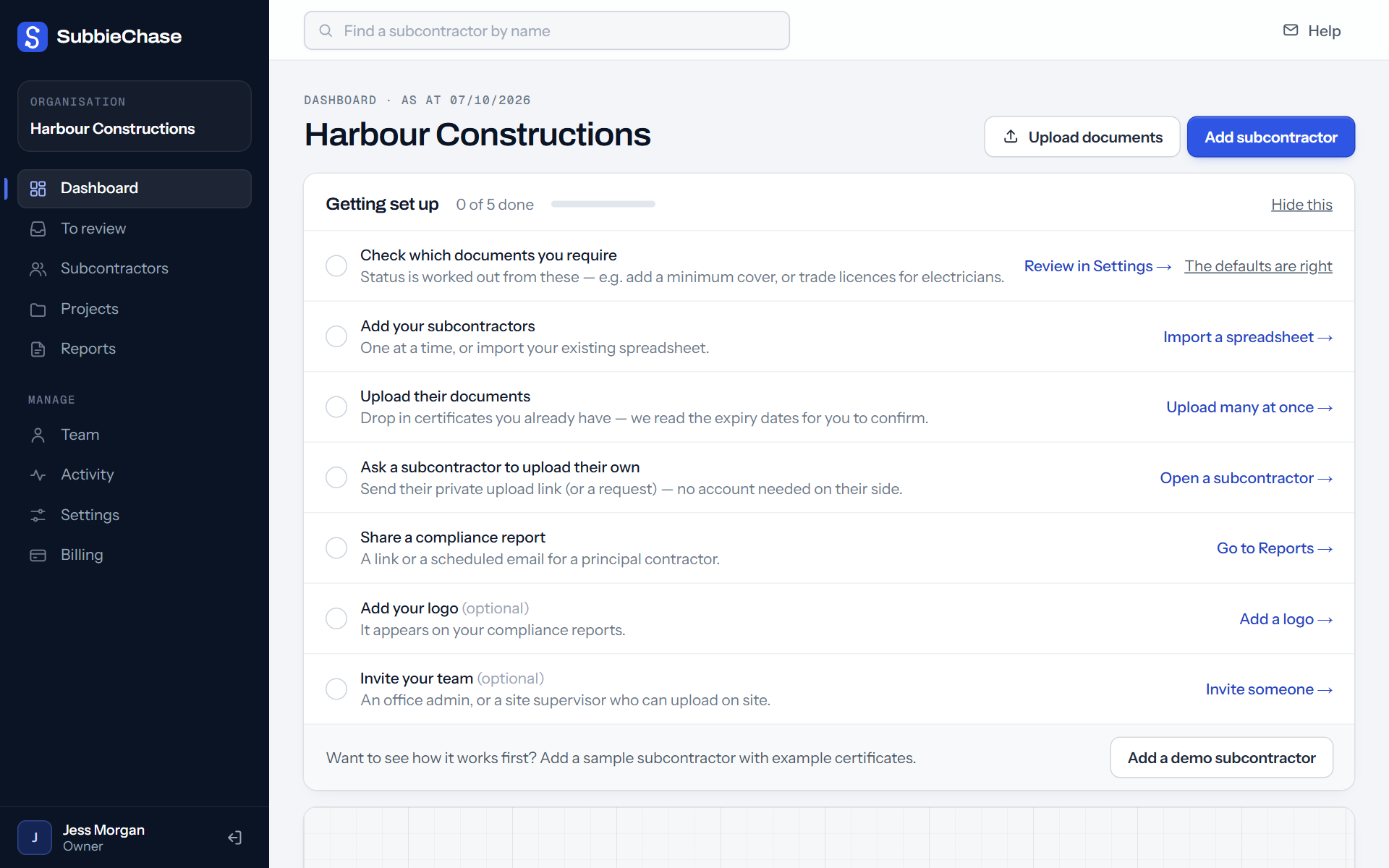
Follow the “Getting set up” checklist
The first thing you see is a short checklist. Each line takes you to the right screen and is ticked off as you go, so you never have to wonder what's next.
Want to see it working before adding anyone real? One click adds a sample subbie with example certificates, and one click removes it.
3Step 3
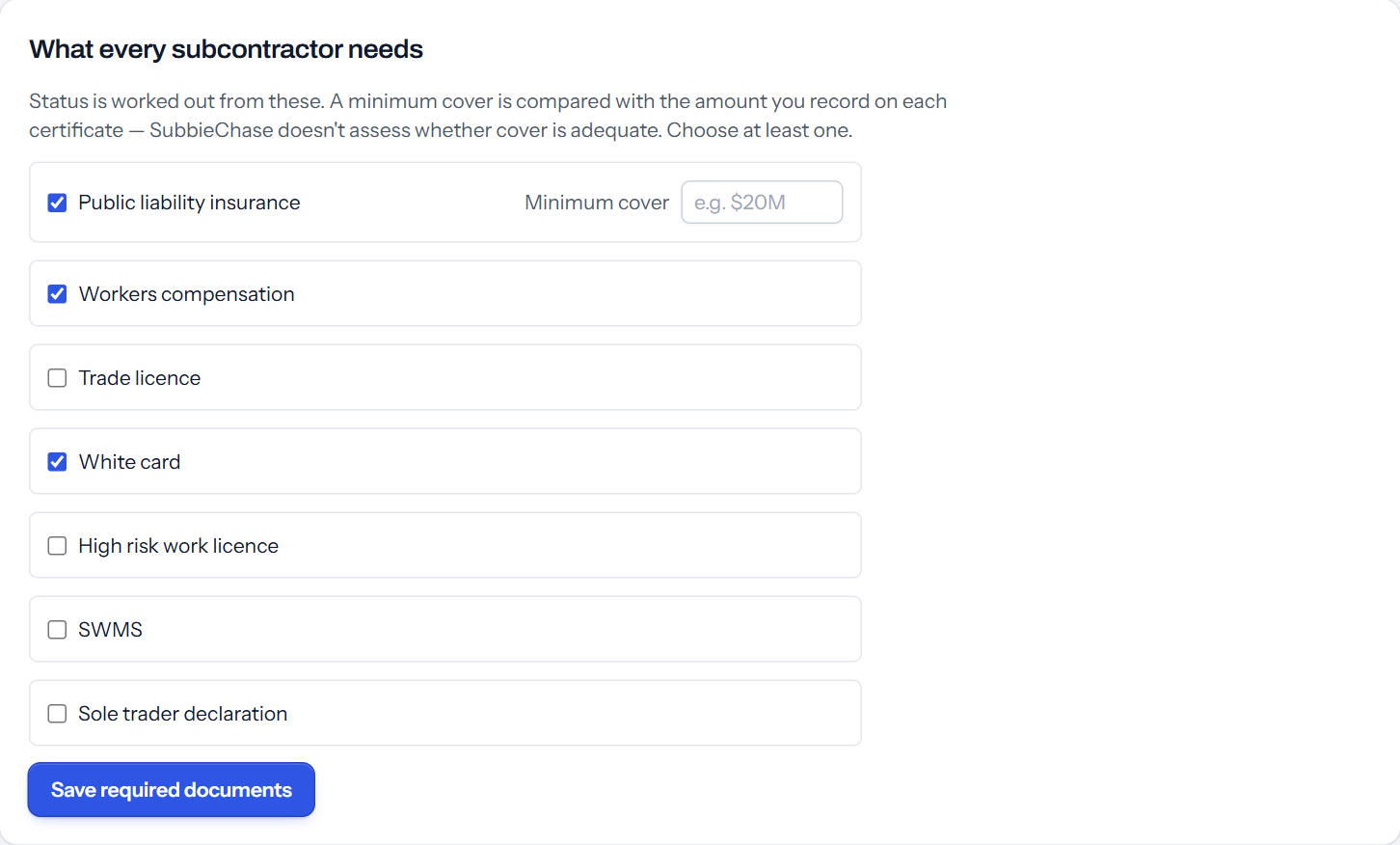
Choose what every subbie must have
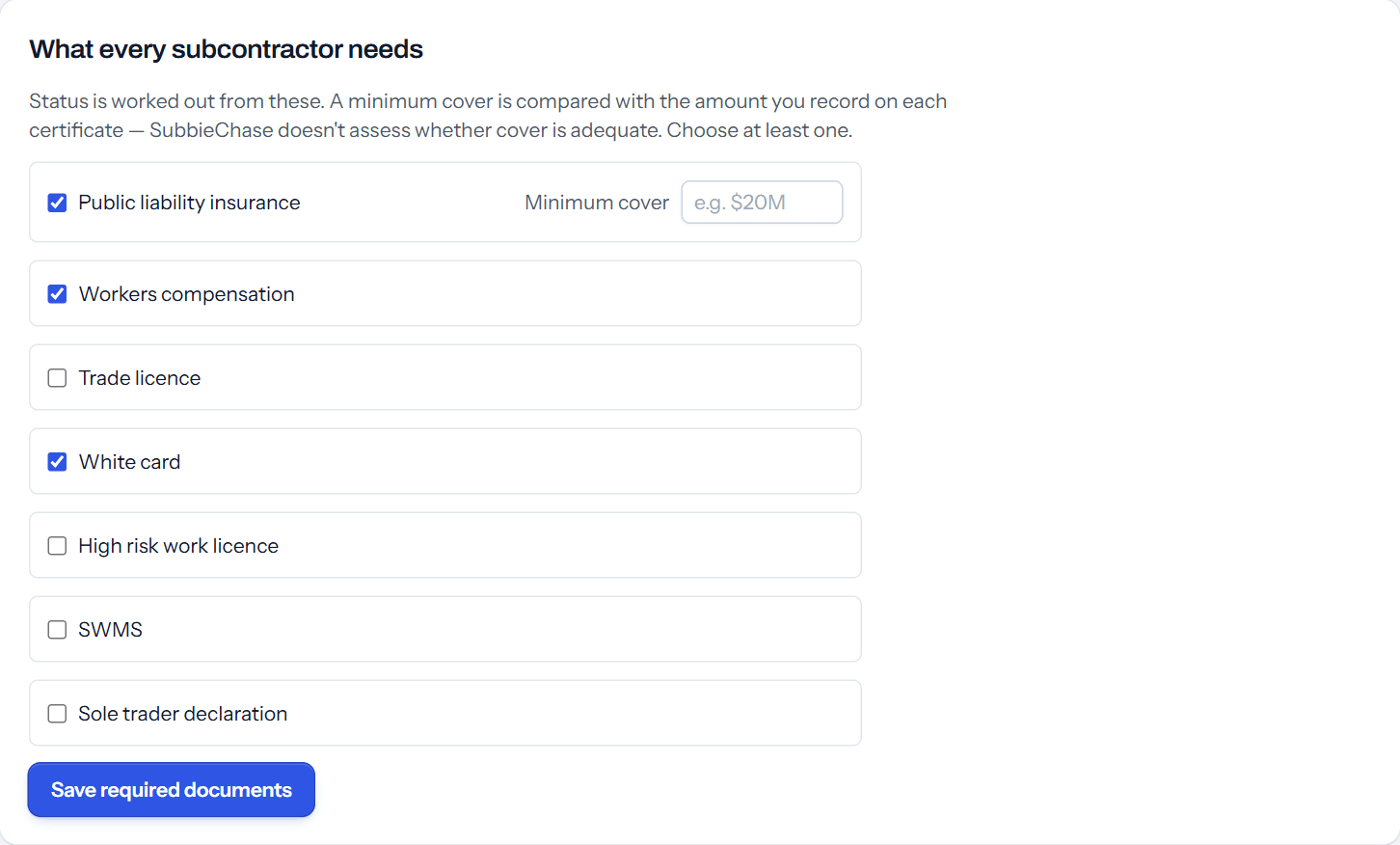
Public liability, workers compensation and a white card are ticked to start with. Change them to suit how you work — add a minimum cover amount, or extras for certain trades, like a licence for electricians or a high risk work licence for scaffolders.
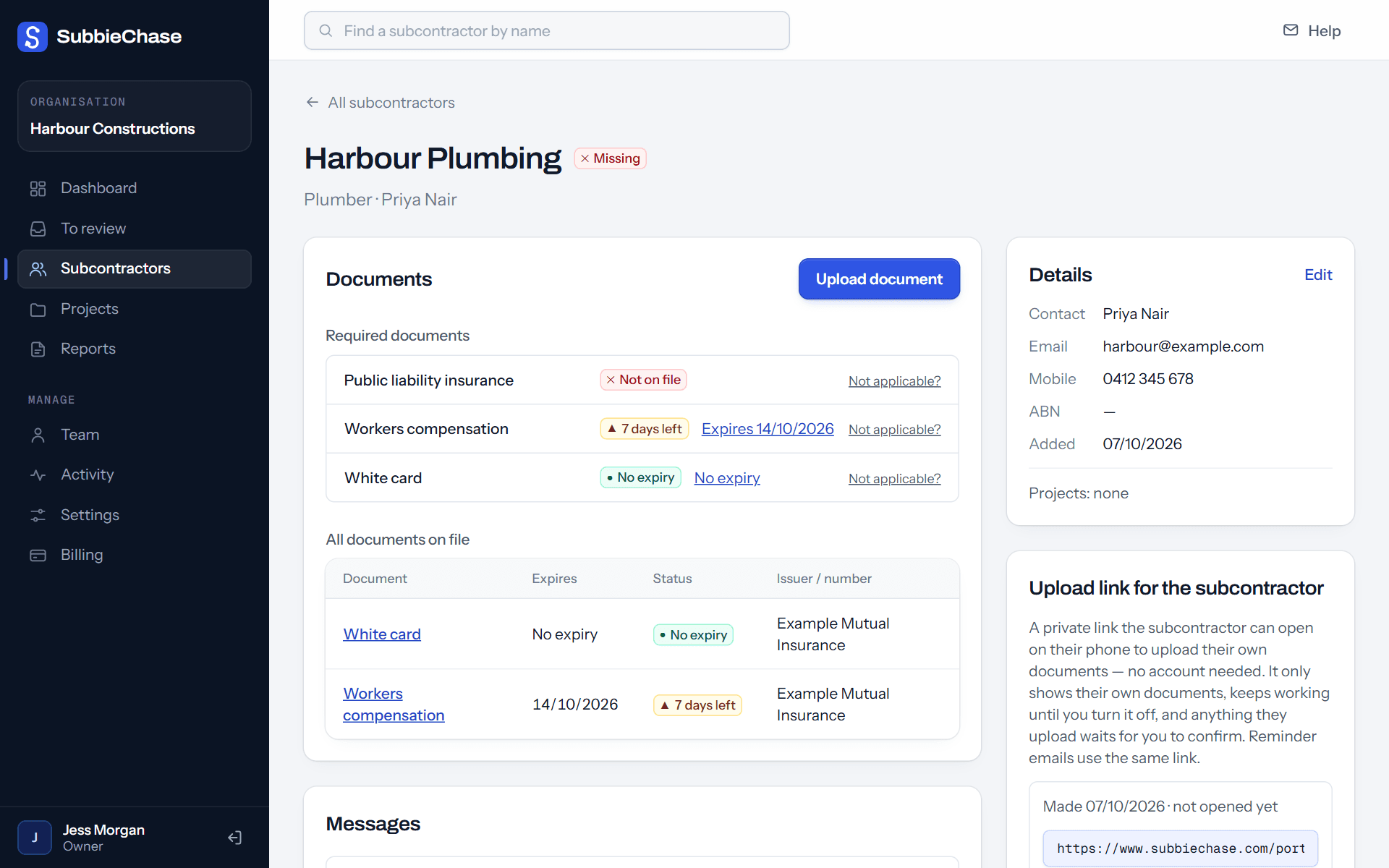
Every subbie's red, amber or green status is worked out from this list. You can change it any time.
4Step 4
Add your subbies
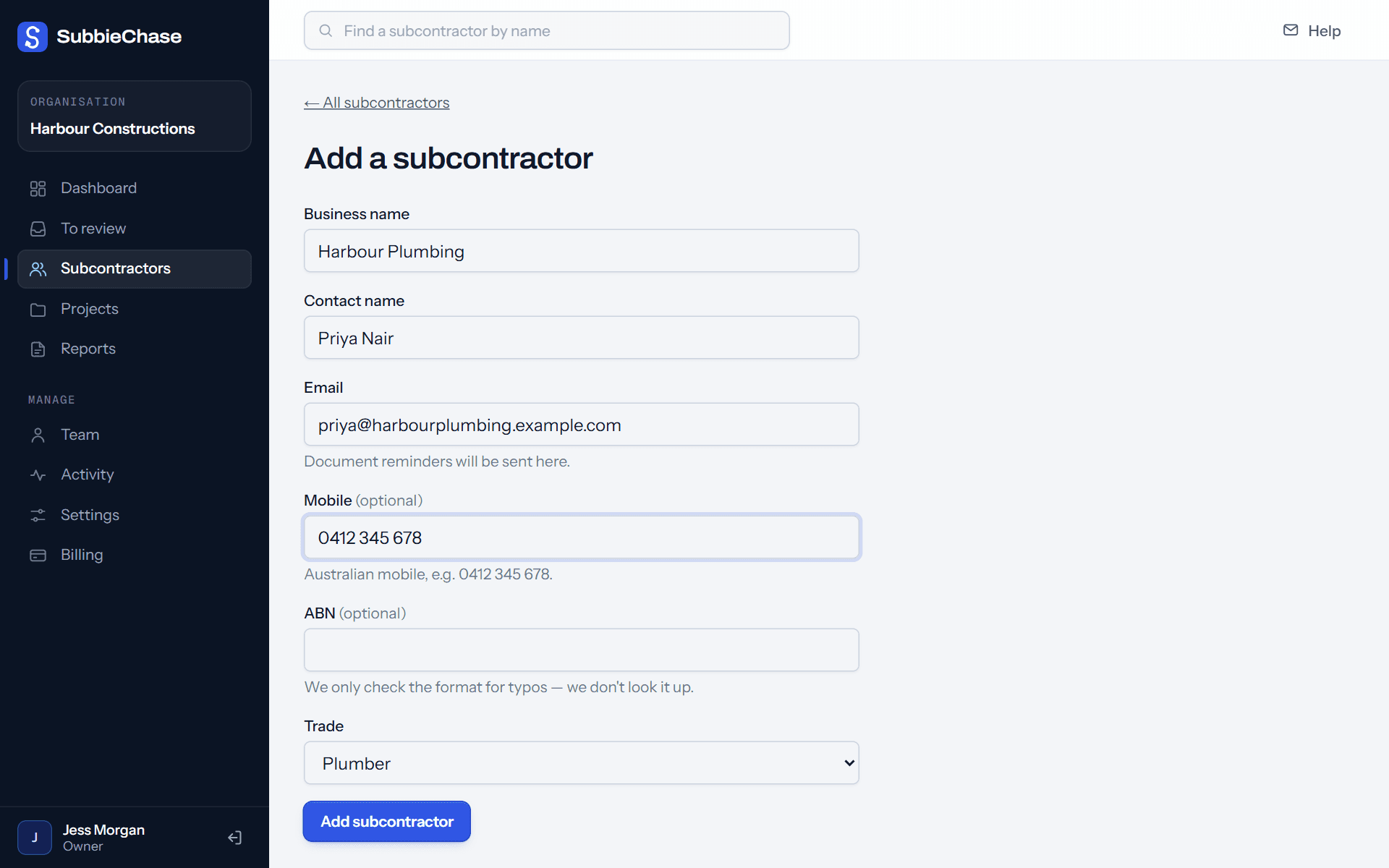
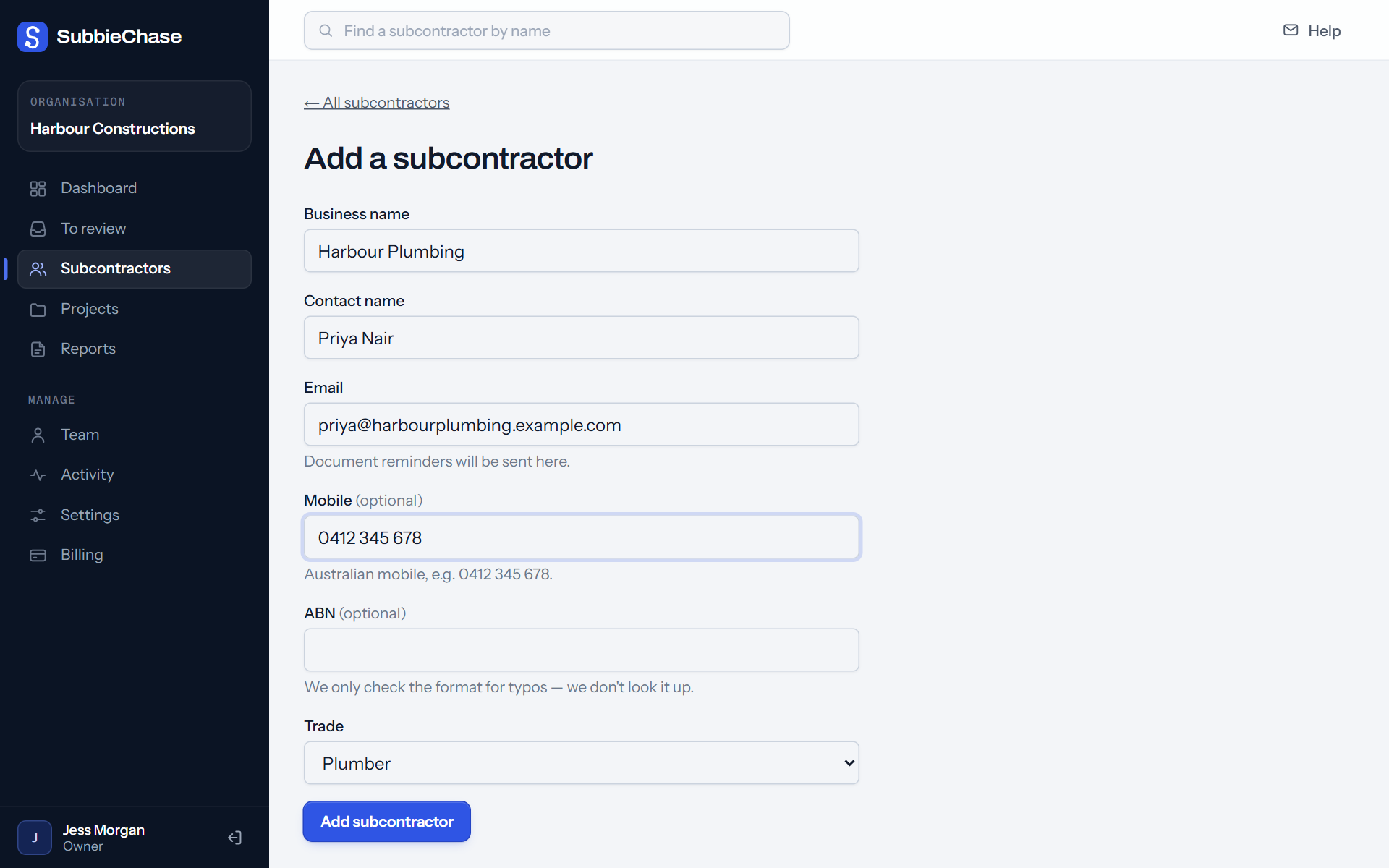
One at a time: business name, contact name, email and trade. The email is where their reminders go; mobile and ABN are optional.
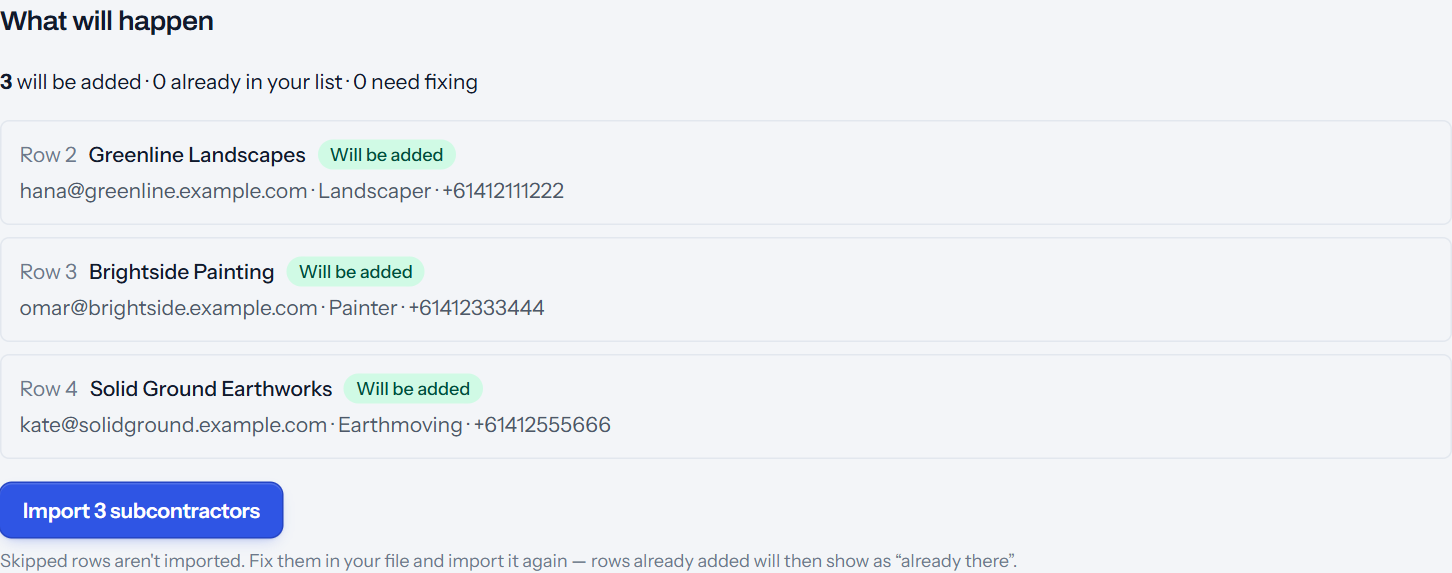
Or bring the spreadsheet you already have. Save it as a CSV (Excel and Google Sheets both can) or paste the rows in. SubbieChase shows exactly what it will add — and anything that needs fixing — before it adds anyone.
5Step 5
Get their certificates in
Two ways — use whichever suits each subbie:
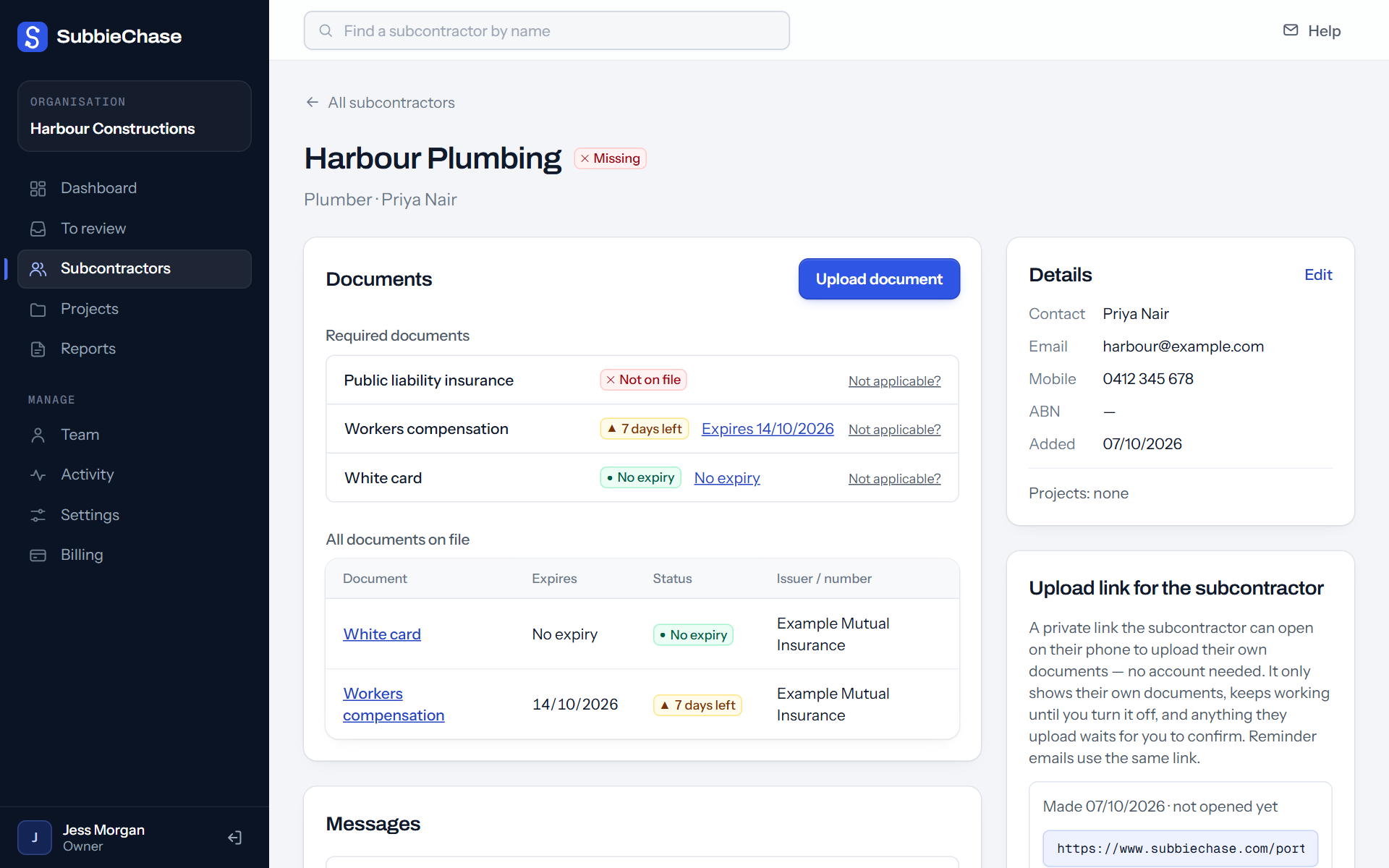
- You already have the certificate? Drag the PDF or a photo in (one at a time or many at once). SubbieChase reads the dates for you — see how.
- You don't? Press Ask for documents. The subbie gets an email with their own private link and sends it from their phone — see what they see.
From then on, each subbie is reminded before anything runs out. You don't have to do anything.
Optional · bring your team
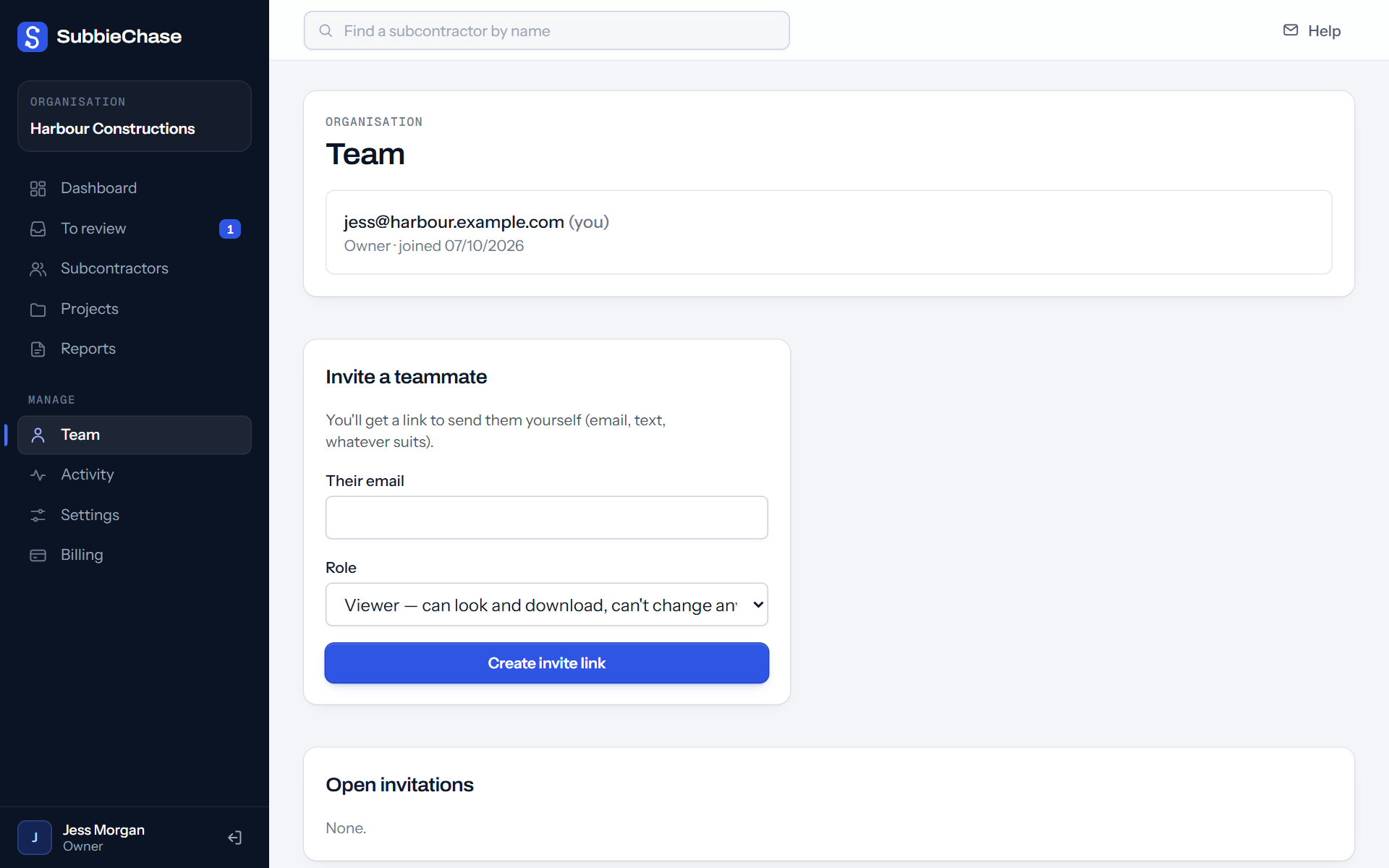
Your office manager, or a supervisor on site
Invite anyone who helps. An admin manages subbies and documents with you. A site supervisor can upload certificates and send upload links from site, but can't change or confirm anything. A viewer can only look and download the report.
02 · What your subbie sees
An email, a link, a photo. That's all they do.
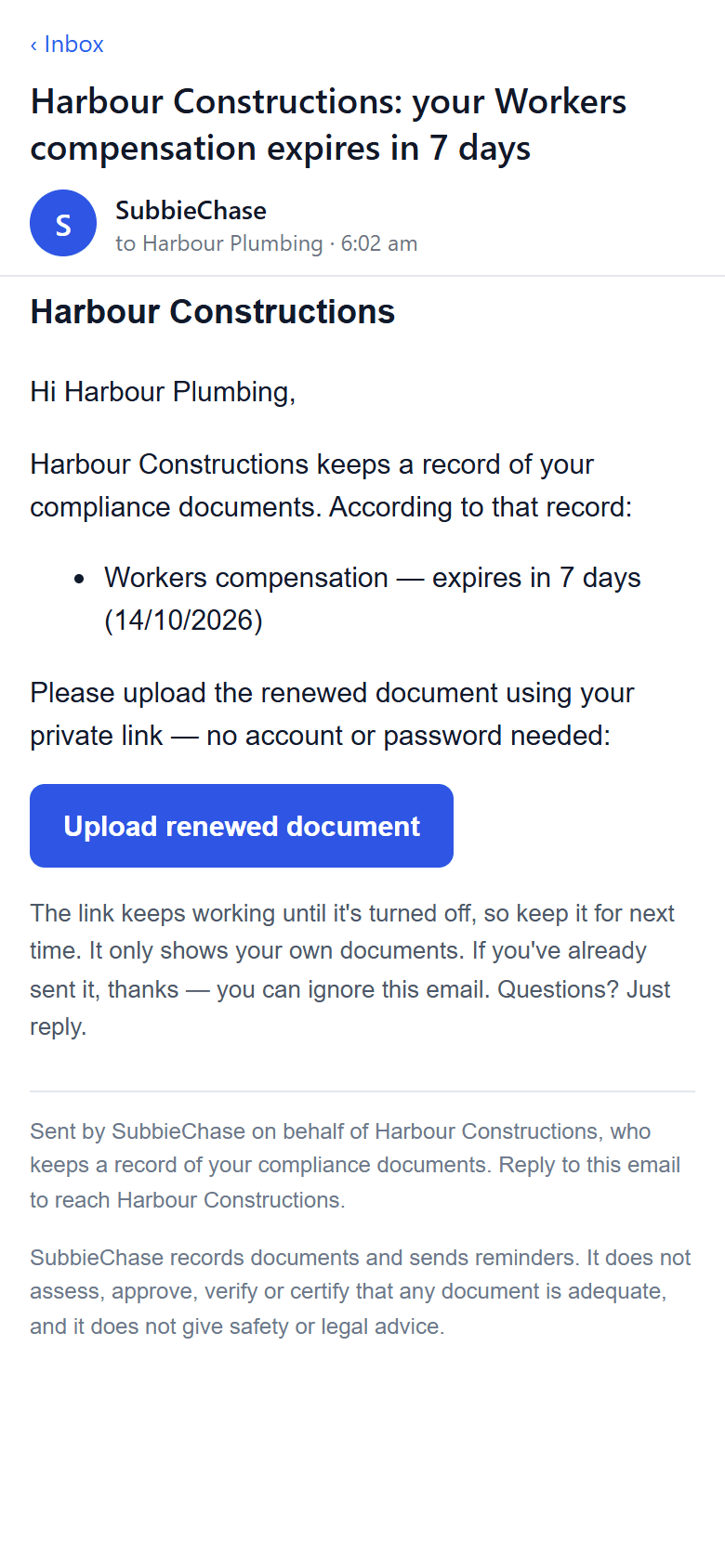
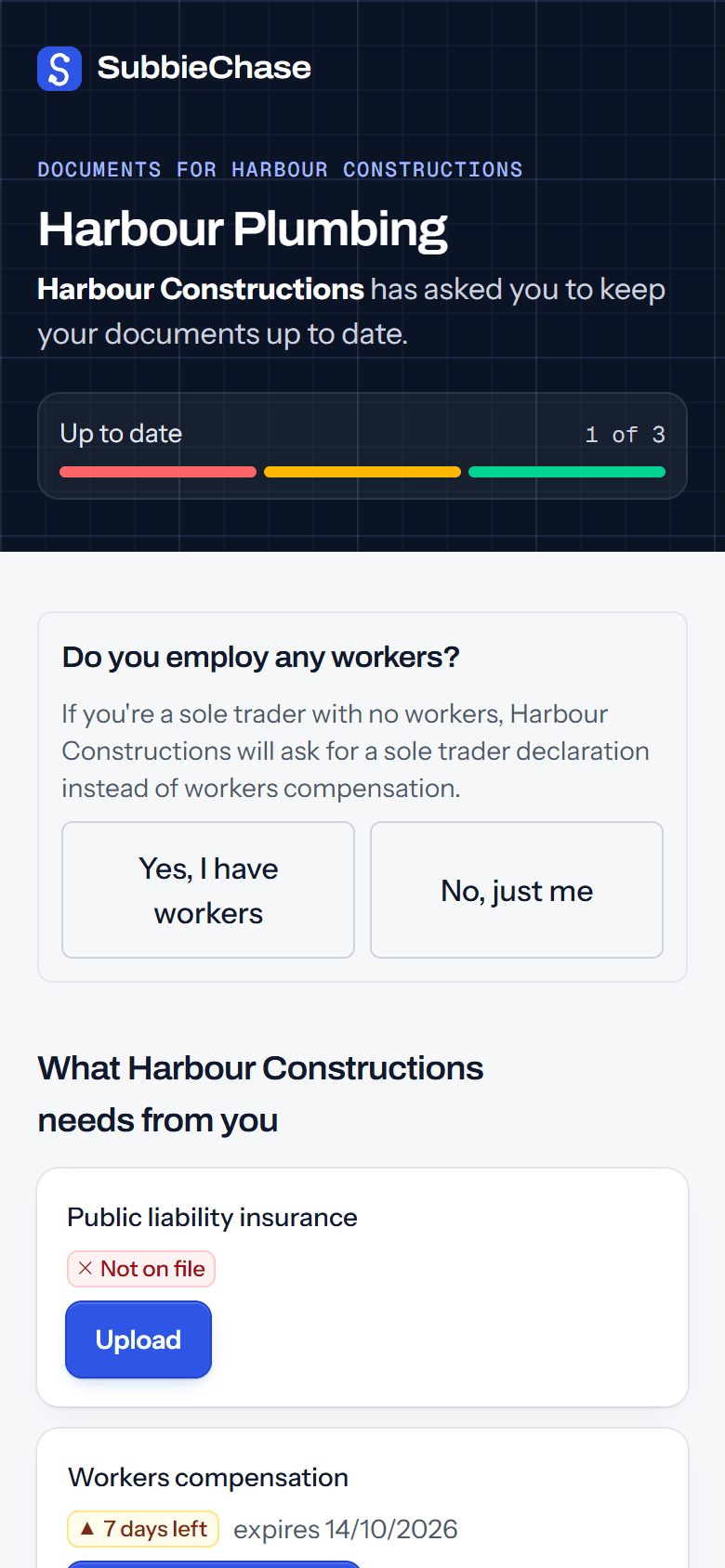
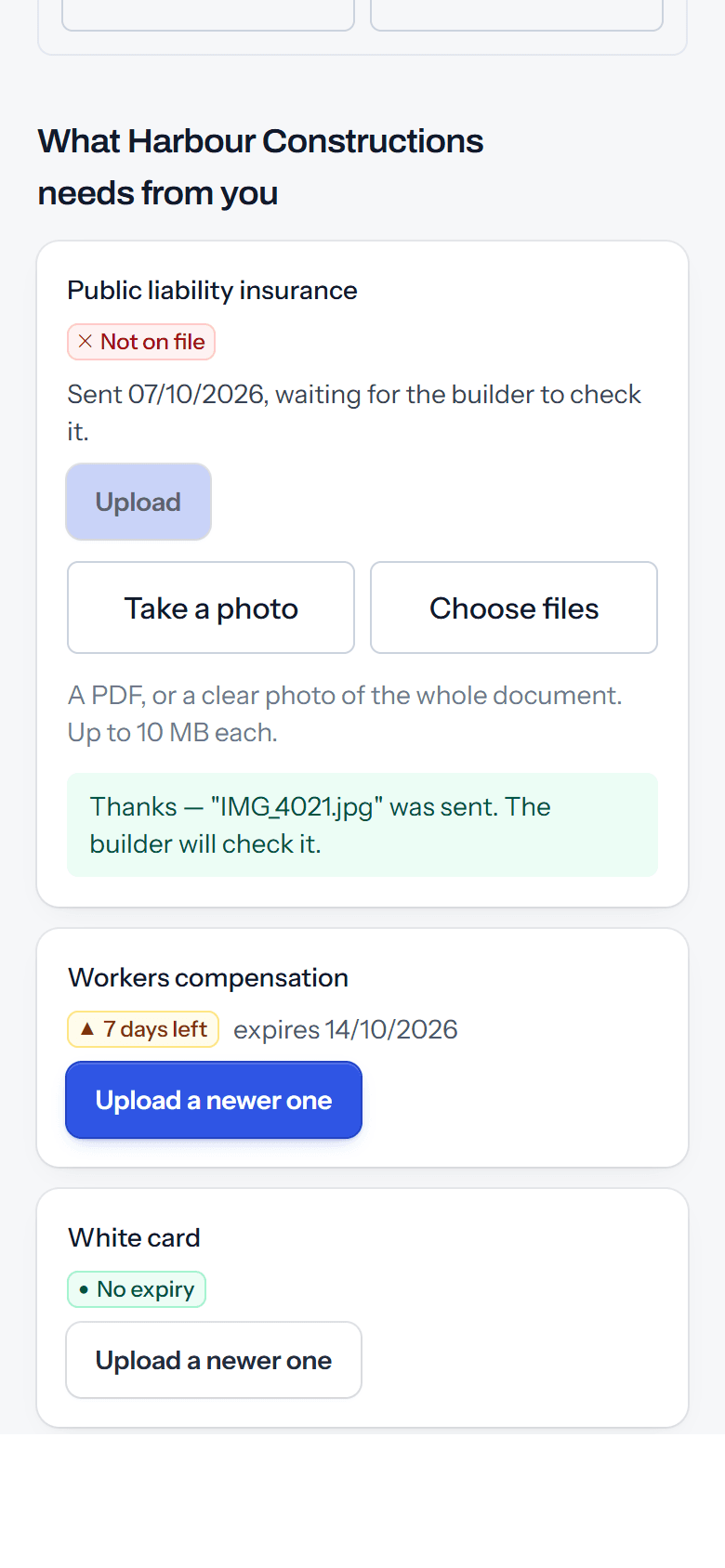
The part builders worry about most: will my subbies actually do it? There's no app to download, no account and no password. If they can open an email and take a photo, they can do this.
Same link every time
Their link keeps working, so the next renewal is just as easy. Text it to them, or print the QR code for the site office.
Private to them
Each link shows one subbie's own documents. You can turn it off or replace it whenever you like.
Nothing counts until you check it
What a subbie sends waits for you. If it's the wrong thing, reject it with a reason — they see why and can send it again.
Works on any phone
Built for a phone on a building site: big buttons, photos straight from the camera, iPhone photos included.
03 · How certificates get read
It reads the certificate so you don't have to type it.
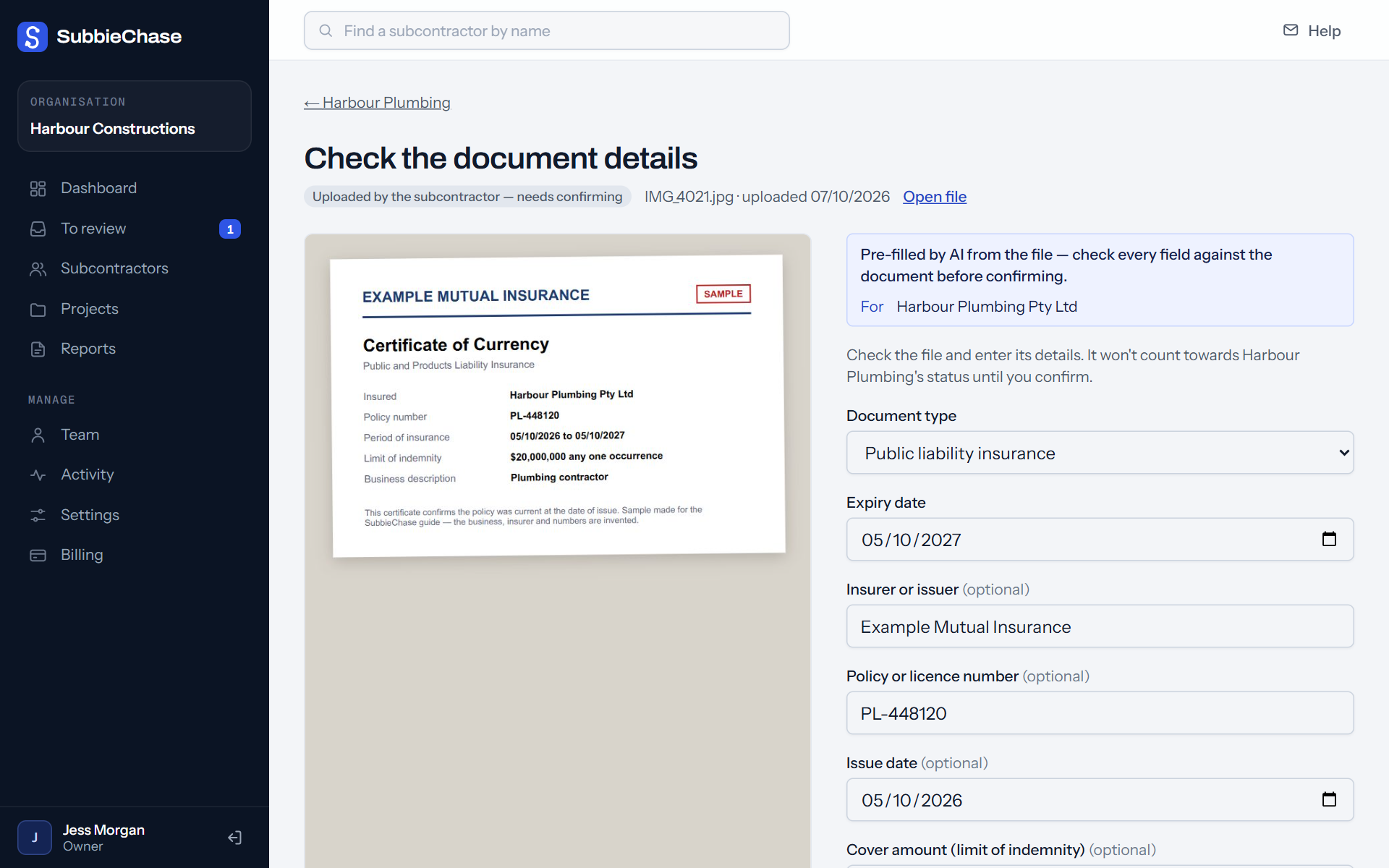
When a certificate comes in — a PDF, or a photo from a phone — SubbieChase reads it the way you would. It finds the type of document, the expiry date, the insurer, the policy number and the cover amount, and fills them in. You glance at the certificate beside it, fix anything that's off, and press Confirm.
- You always have the final say. Nothing is saved, and nothing changes a subbie's status, until a person confirms it.
- It tells you when it isn't sure, and shows the exact words it read, so you know what to double-check. It also points out things worth a second look — like a name that doesn't match, or a quote instead of a certificate.
- There's nothing to learn or switch on. It just happens when a document arrives. You can always type the details in yourself instead.
Is this AI? Yes — the reading is done by Claude, an AI model made by Anthropic, used here for one narrow job: reading the details off a certificate. It doesn't make decisions, and it never says a document is adequate; that call is always yours. The file is sent to Anthropic only to be read (details in our privacy policy).
04 · Your week with SubbieChase
Once it's set up, you mostly just check in.
Any time · the dashboard
Who needs chasing, at a glance
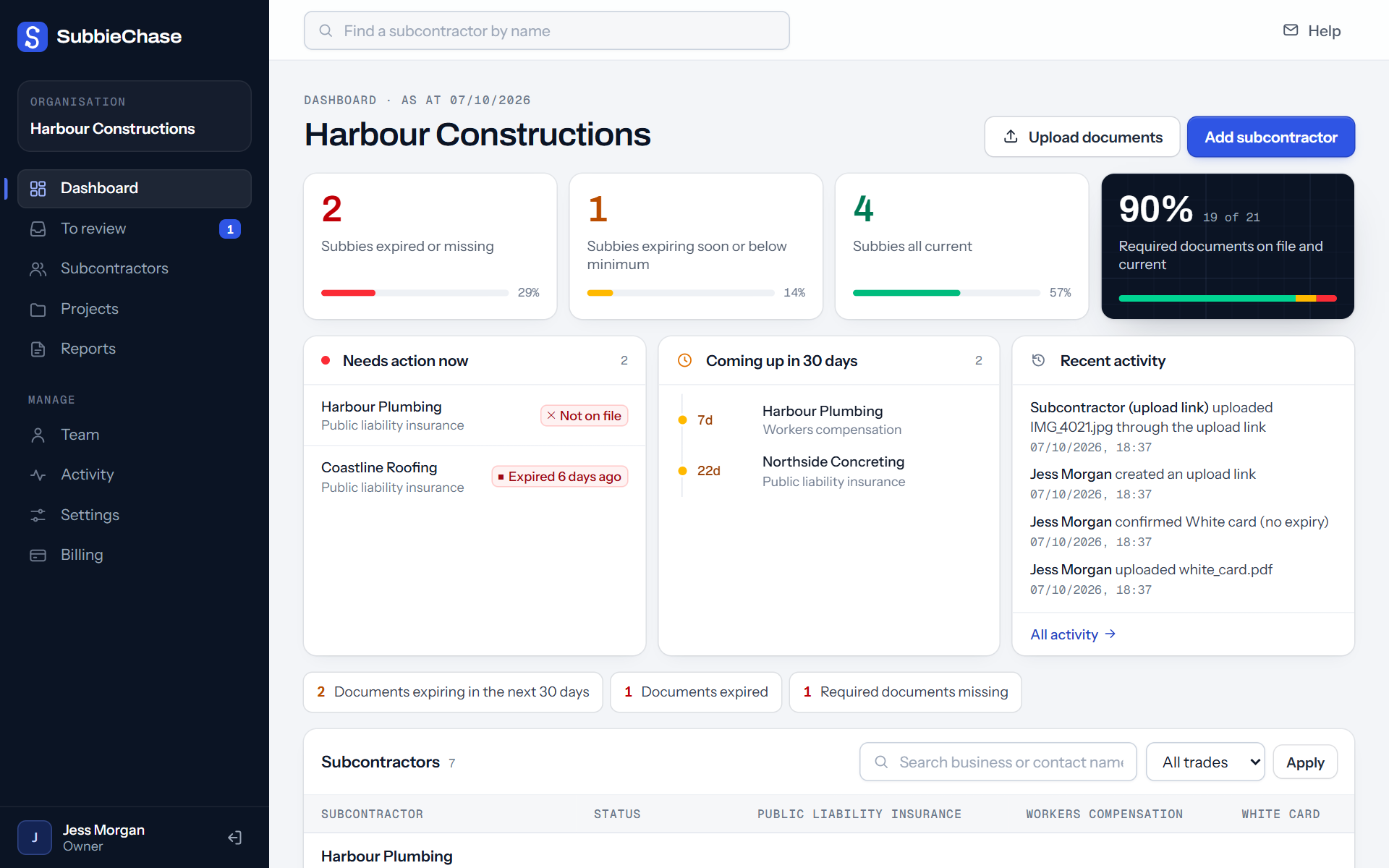
Red for expired or missing, amber for running out within 30 days, green for current. What needs action now is at the top, what's coming up is next to it, and every number filters the list.
When a subbie sends something
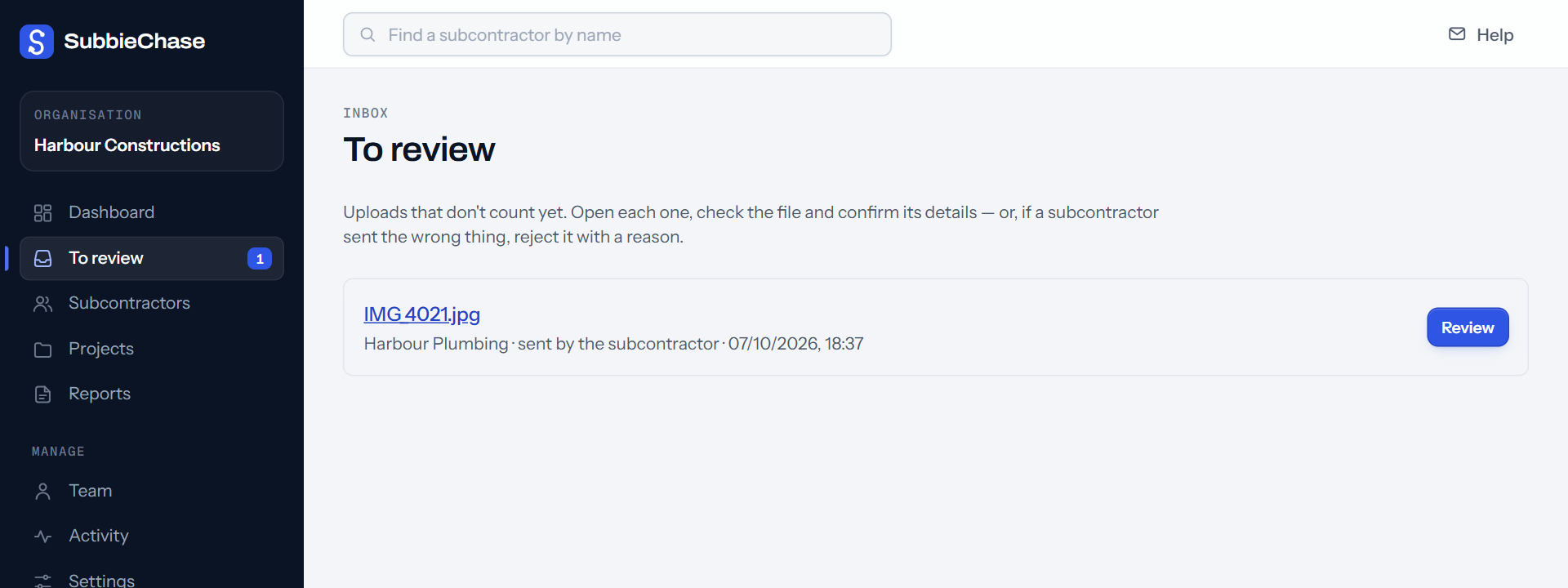
It waits in “To review”
You get an email straight away. Open it, check the details that were read for you against the certificate, and press Confirm.
When a principal contractor asks
Proof in one click
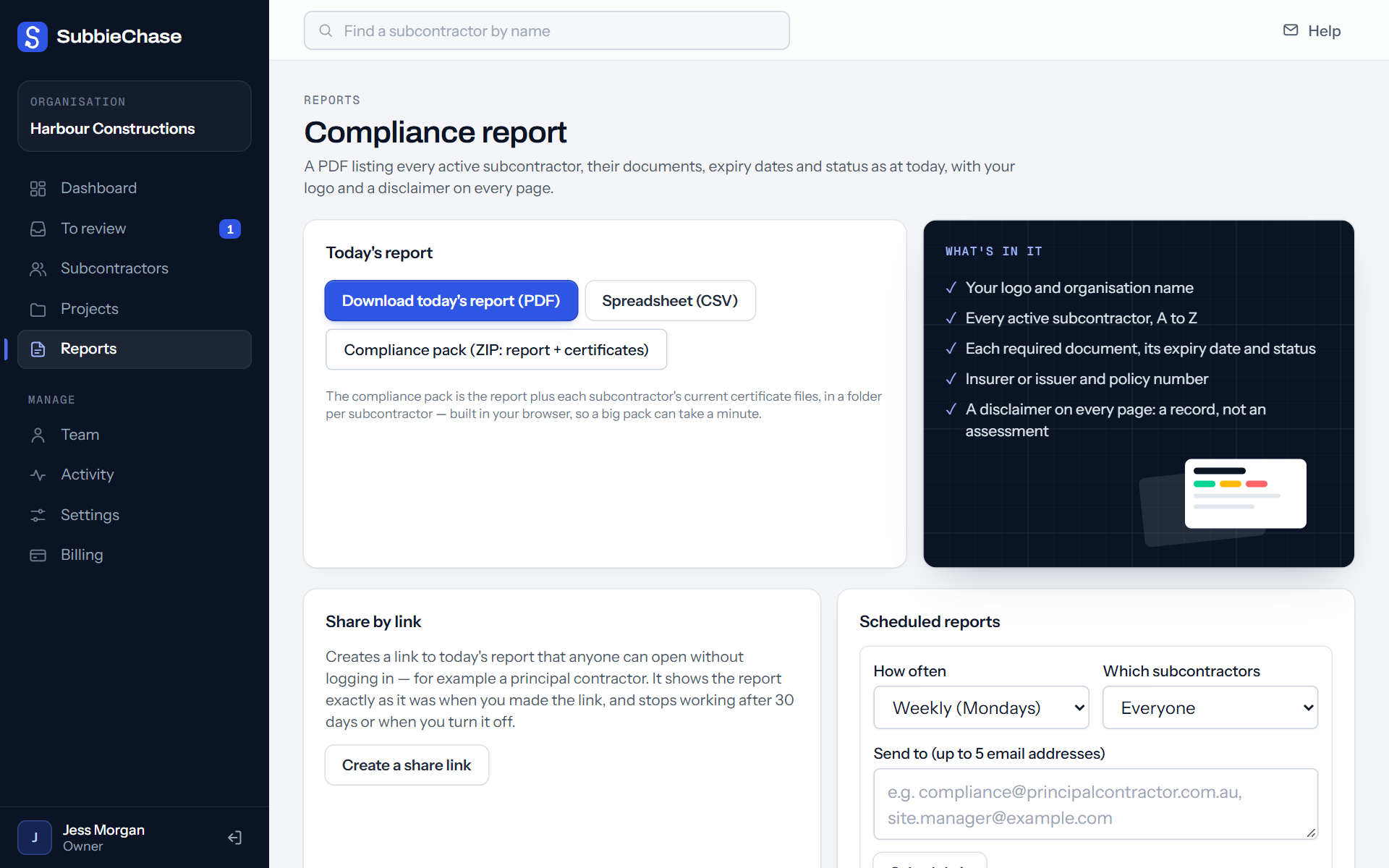
A PDF with every subbie's documents and expiry dates as at today, with your logo. Download it, send a link that keeps working for 30 days, do it for one job only, or have it emailed to them every Monday.
Every Monday
A short email: who's expired, missing or running out, and what's waiting for you to check.
Projects
Put subbies on jobs and see one site's status — and give that client a report just for their job.
A record of everything
Every upload, confirmation and reminder, with who and when. Handy when someone asks “did we chase them?”
Every subbie's history
Each subbie's page shows their documents, old and current, and every reminder that went to them.
05 · Plans
Try it free first. Pick a plan only if it's worth it.
14 days free, no card. If you don't choose a plan, nothing is deleted — you can still see and download everything. Every plan has every feature; they differ only in how many active subbies you track. Cancel any time. Prices in AUD.
| Plan | Active subbies | Monthly | Yearly |
|---|---|---|---|
| Starter | Up to 25 | $79 | $790 (2 months free) |
| Growth | Up to 75 | $149 | $1,490 (2 months free) |
| Pro | Unlimited | $299 | $2,990 (2 months free) |
Full details on the pricing section.
Rather not do it yourself?
We'll set it up with you.
Send your subbie list — a spreadsheet is perfect — to hello@subbiechase.com and we'll load it into your account and get the first upload links out to your subbies, so you start with everything in place.